
How to generate a strong password
Dusrel's password generator creates a random password for you in the browser — nothing is sent to a server, so the password is never seen by anyone but you. Open it at dusrel.com/pass/password-generator/ and follow the steps below.
Steps
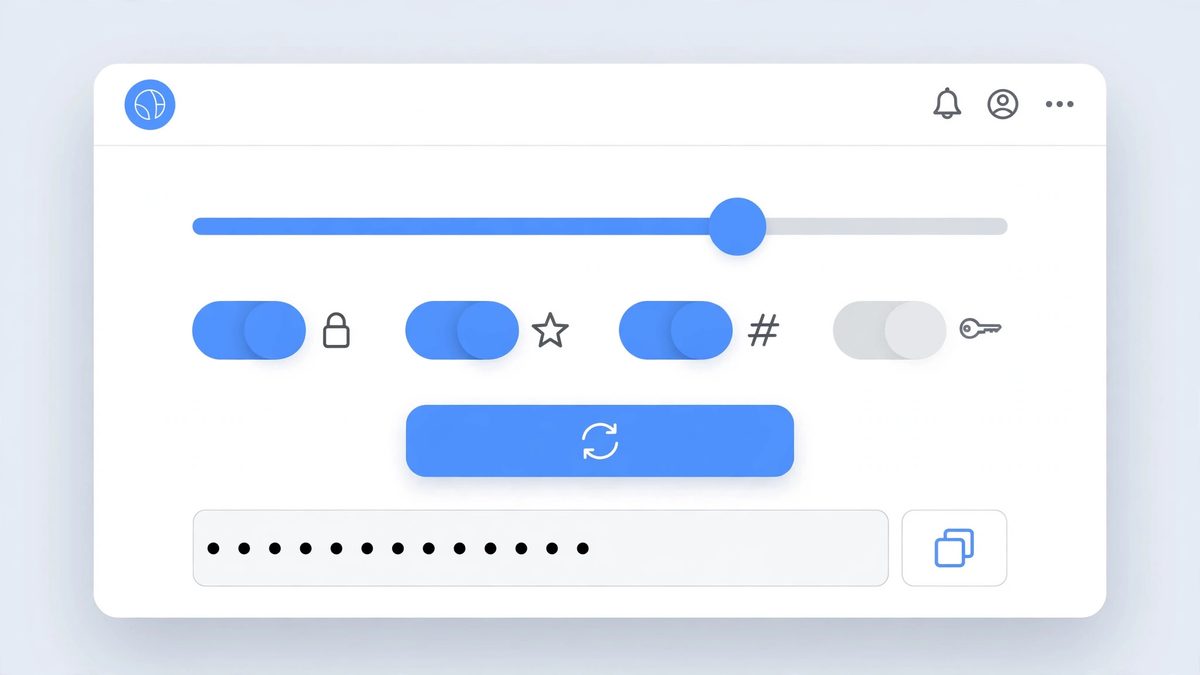
- Open the tool. A password is generated for you straight away, using the default settings: 16 characters, with uppercase letters, lowercase letters, numbers, and symbols all included.
- Set the length. Drag the
Password lengthslider to anything from 8 to 64 characters. Longer passwords are stronger — for an important account, 16 characters or more is a good choice. - Choose the character types. Tick or untick the four boxes:
Uppercase (ABC),Lowercase (abc),Numbers (123), andSymbols (#$&). Every change generates a new password immediately, so you can see the result of each choice at once. - Exclude look-alikes if you need to read or type the password. Tick
Exclude look-alikes (0, O, 1, l, I)to leave out characters that are easy to confuse with each other, such as the digit0and the letterO. - Generate a fresh one. Click
Generate new password, or the↻button next to the password, for a completely new password with your current settings. - Copy it. Click
Copynext to the password. The button briefly showsCopied!— then paste the password wherever you need it, such as your password manager or the account's sign-up form.
What the strength meter tells you
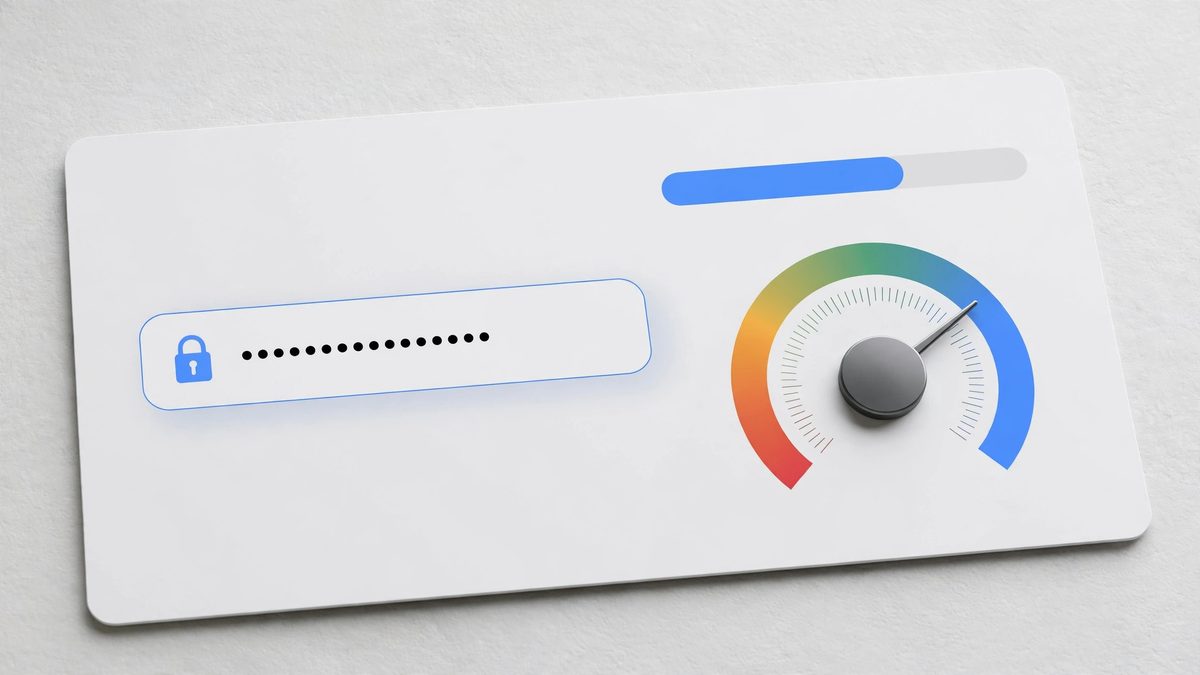
Under the password you will see a strength label, a number in "bits of entropy", and a coloured bar. Bits of entropy measure how hard the password is to guess: more bits means a larger number of possible combinations.
- Weak — under 40 bits
- Fair — 40 to 59 bits
- Strong — 60 to 79 bits
- Excellent — 80 bits or more
Two things raise the number: a longer password, and a wider mix of character types. If your password shows Weak or Fair, lengthen it or tick more character types until it reaches Strong or Excellent.
Tips
- Every selected character type is always represented. The generator guarantees at least one character from each type you ticked, so ticking
Symbolsreally does put a symbol in the password. - You cannot end up with nothing selected. If you untick every character type, lowercase letters are switched back on automatically so a password can still be generated.
- The randomness comes from your browser. Passwords are built with the Web Crypto API (
crypto.getRandomValues), the browser's own cryptographic random source — not a simple random-number function. - Use a password manager. A generated password is meant to be copied and stored, not memorised. If you ever need to type a password by hand, use the look-alike exclusion in step 4 to make it easier to read.
- Give every account its own password. Generating a new one takes one click, so there is no reason to reuse the same password across accounts.