
How to build a resume with ResumeForge
ResumeForge is a free resume builder that runs entirely in your browser. You type your details, watch the resume take shape in a live A4 preview, and export it as a PDF. No sign-up is needed, and your data never leaves your device — drafts are autosaved in your browser.
Open it at dusmamud.github.io/resumeforge/.
Build your resume
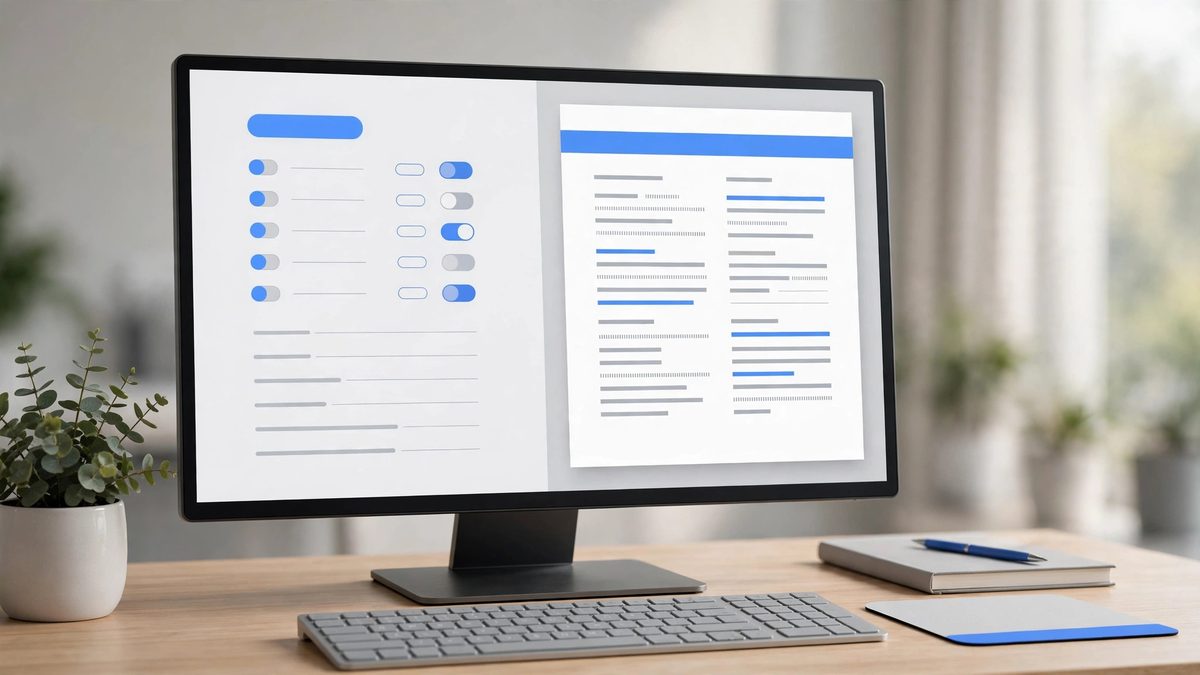
- Open ResumeForge.
- Pick a template. There are four ATS-friendly templates — Minimal, Professional, Modern, and Classic — each with a live preview, so you can see the style before you commit to it.
- Fill in your details: personal information, work experience, education, skills, and any other sections you need. The A4 preview updates as you type, so you always see exactly what the finished page will look like.
- Adjust the look: change the accent colour, pick a font, and turn your photo on or off, depending on what the job and the template call for.
- When you are happy with the preview, export it as a PDF via print and save or print the file.
Because drafts autosave in your browser, you can close the tab and come back to your resume later without losing your work.
Tips
- Write bullets as results, not duties. Instead of listing what a job involved, say what you achieved — start with an action word and add a number where you can, for example how many people, orders, or projects were involved. Short, concrete bullets read better than long paragraphs.
- Start with the content, then the style. Write all your sections first in any template, then try the other templates — switching does not make you retype anything, and the preview shows each style instantly.
- Keep it to the pages the preview shows. If your resume spills onto an extra page, trim older roles or shorten bullet points rather than shrinking everything down.
- Match the template to the role. Minimal and Classic suit formal or traditional fields; Modern and Professional work well when you want a bit more visual structure.
- Check the PDF before sending it. Export once, open the PDF, and read it through — a quick check catches overflow, cut-off lines, and typos that are easy to miss in the editor.
- Your drafts live in this browser. Autosave uses your browser's own storage, so your resume is on this device only. Export the PDF as your portable copy if you switch devices.